AI for Lawyers
AI for lawyers that works on your matters. You decide, you save.
Dictate a timesheet entry and KeyVision fills it in. Paste a new client’s email and KeyVision prepares the customer, the contract and the first invoice. Through the MCP Connector, you can ask Claude or ChatGPT what you have in court tomorrow.
The AI suggests, you check the usual form and save. Nothing is saved without your confirmation.
See the features | Read the AI Addendum
AI for lawyers in the app: what the AI Assistant does
The ✦ button in the header opens the assistant. Choose what you want to do, type or dictate, and the AI fills in the form. If the AI Provider does not respond, the form stays available for manual entry.
Dictated or typed timesheet entry
Say or type “2 hours on case X, drafted the statement of defence”. KeyVision fills in the customer, the project or case, the duration and the description of the entry. Optionally, the AI rewrites the description in timesheet style. You check and save.
Assisted new customer
Paste an email or an offer. KeyVision extracts the company, the tax ID, the contact person, the engagement and the fees, then takes you through a 5-step wizard: customer, contact, project, contract (with power of attorney) and invoice.
Assisted contract
From the engagement description, KeyVision suggests the right fee type, from the ones defined by your firm.
Assisted referral
Fills in the referral form from your text. It works through local rules, inside KeyVision, without any AI Provider.
Client requests
- The lawyer who received the request records it in 3 steps: the customer, what they ask for and how the work should be organised. Optionally, with an estimate of hours.
- The reviewer checks the request and sets the fee and the advance.
- From the same screen, the reviewer generates the customer (with data from ANAF or VIES), the project or referral, the fee rules and the draft advance invoice.
Each step can be repeated if something is missing, for example the customer’s e-Factura fields. The screen works without AI and is available with the Performance add-on.
Dictation through the browser
Dictation uses the browser’s speech recognition. KeyVision receives only the text, not the audio. If you prefer, type instead of dictating.
AI for lawyers in Claude and ChatGPT: the MCP Connector
The KeyVision PRO MCP Connector lets an External AI Application read your KeyVision data and, only with your approval, add or send something in KeyVision on your behalf. You sign in with your KeyVision account and approve explicitly. You can disconnect at any time.
What it sees
Exactly what you see in KeyVision, with your permissions, nothing more. The Administrator chooses the data categories exposed (“All data” or one by one), the allowed applications, the maximum duration of a connection and the rules for IP-restricted accounts. The firm’s external users cannot use the connector.
What you can ask the AI for lawyers
- Search: a customer, a case, an invoice, a trademark or a company, by name or number.
- Customers and projects: the customer file, projects, contacts.
- Cases and hearings: parties, court, stage, hearings and the latest ruling, plus the hearings in the chosen period.
- Agenda and tasks: the day’s or week’s agenda, your tasks, the team’s workload.
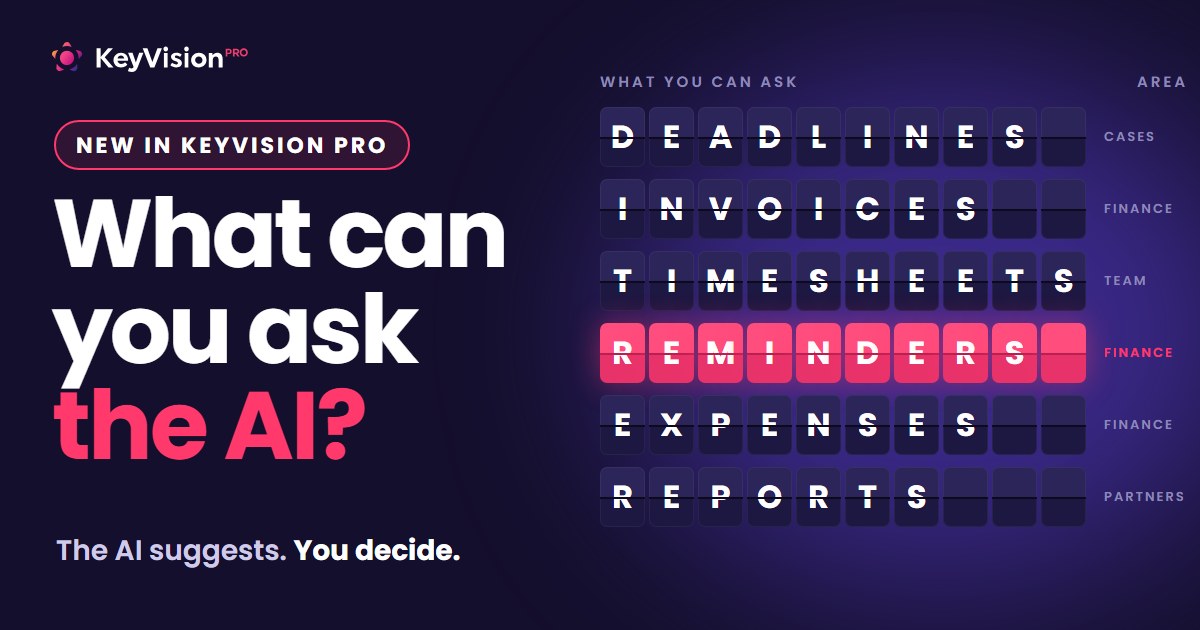
- Financial: issued invoices and balance, invoices received through e-Factura, unbilled hours and expenses, timesheet summary.
- Documents: the list (name, case, type, author, date), without content.
- What’s new: what changed since yesterday: new hearings, rulings, tasks received, payments, invoices received.
- Add-ons: insolvency (monitored companies, BPI publications), CNSC (the register and the firm’s challenges), trademarks (the firm’s trademarks and their deadlines).
Invoices received through e-Factura, payment reminders and balance statements require the Performance add-on, as in the app.
Four actions, only with your confirmation
For four things, the connector prepares and you decide from the card shown in Claude. The model cannot send or save anything on its own.
| Action | What it prepares | Final step |
|---|---|---|
| Payment reminder | the email for an overdue invoice, with preview | you click “Send” |
| Balance statement | the email with the customer’s balance | you click “Send” |
| Timesheet entry | the time worked and the description, for a customer, project or case | you click “Save” |
| Rebillable expense | from a photo of a receipt or invoice: type, VAT, project, case, description | you click “Save” |
Payment reminders and balance statements require the Performance add-on and are off by default. The Administrator turns them on separately.
Example. You take a photo of a court fee receipt and write to Claude: “Record this expense on the Popescu case.” Claude reads the receipt, the connector finds the customer, the case, the expense type and the VAT rate and shows everything in a card. When you click “Save”, the expense appears in KeyVision as rebillable, ready for the next invoice. A document already recorded is flagged as a duplicate.
In the morning, in Claude: “what do I have today and what changed”
“What do I have today?” returns the day’s agenda: hearings, tasks, events. “What happened since yesterday?” returns the news on your cases and projects. Each line links to the page in KeyVision. With a scheduled task in Claude, the summary arrives at the time you choose.
Hearing dates shown by an AI assistant are checked against the official source, like any AI Suggestion (Article 10.3 of the Addendum).
What it never exposes
Passwords, tokens, personal identification numbers, IBANs, KYC data, phone numbers, email addresses, addresses, document content, hourly rates, internal case notes.
Use a business account
Data read through the connector reaches the AI application you chose (Claude or ChatGPT), under your contract with that provider. What it keeps and whether it trains depends on your account. Business accounts (Claude Team or Enterprise, ChatGPT Business or Enterprise) do not train on your data. We recommend a business account.
Where the data goes when you use AI for lawyers
KeyVision data stays on the current infrastructure. For the AI Features, the text goes to the AI Provider only for as long as the response takes and comes back as a Suggestion, which you check.
The AI Providers and the data each feature sends are described in the AI Addendum.
You stay in control
- Off by default. The features start after an Administrator accepts the AI Addendum in Settings › AI Assistant. From there, each feature is turned on or off separately.
- AI Log. Every use of the assistant and every MCP call is recorded in the AI Log: date, user, application, operation, number of results, refusals with reason. The Administrator can view, filter, download and delete it. It is kept for 180 days.
- Immediate stop. The Administrator revokes the acceptance from the same page. The AI Assistant stops sending anything and the connector refuses every request.
- Responsibility stays with you. The AI suggests, it does not give legal advice. Every Suggestion is checked before saving.
How to turn on AI for lawyers in KeyVision
- An Administrator of the firm opens Settings › AI Assistant and accepts the AI Addendum. Until then, the features are off.
- From the same page, the Administrator turns each feature on or off and chooses what data the connector sees.
- For Claude, add the KeyVision PRO connector in claude.ai. Optionally, download the skill from Settings › AI Assistant › MCP Access.
- For ChatGPT, the Administrator turns on the connector and the instructions are pasted into Instructions, in a Project or a custom GPT.
AI for lawyers pricing
The AI Features are included in all paid accounts, at no extra cost at launch. Client requests and some connector features (payment reminders, balance statements, invoices received through e-Factura) require the Performance add-on, at 6 EUR/user/month, as in the app. Details on the pricing page.
The 15-day free trial includes the AI Features.
Try it for free | Schedule a demo
AI for lawyers: frequently asked questions
Is there legal software with AI for lawyers and law firms in Romania?
Yes. KeyVision PRO, legal software developed by Softventure, has had an AI Assistant in the app since November 2026: dictated timesheet entries, a new customer filled in from an email, a fee type suggested from the engagement description. It also has an MCP Connector that brings your cases into Claude and ChatGPT.
Can ChatGPT be connected to the firm’s cases?
Yes, through the KeyVision PRO MCP Connector, in a Project or a custom GPT. For ChatGPT, the connector is off by default and the firm’s Administrator turns it on. For Claude, it is on by default.
Where is the data processed?
The language model (Claude, through Amazon Bedrock) runs in the EU, Frankfurt region, with zero data retention. Choosing the case and checking the text is done by TypeSafe, in the US. Dictation goes through the browser. Through the connector, data reaches your AI application, under your contract with it.
Does the AI save anything on its own?
No. Every Suggestion appears in the usual form, you check it and decide whether to save it. In the connector, the four actions that send or save something are done only from the confirmation card.
Are the models trained on my cases?
No. The Amazon Bedrock account is set to zero data retention and nothing is used for training. TypeSafe is contractually bound not to train without our consent, which we do not give. Through the connector, the rules depend on your Claude or ChatGPT account. Business accounts do not train on your data.
Who sees what I sent to the AI?
The firm’s Administrator, in the AI Log, for 180 days or until it is deleted.
Can I turn everything off?
Yes. The Administrator revokes the acceptance of the Addendum in Settings › AI Assistant. The effect is immediate.
What does the MCP Connector receive from documents?
Only the list: name, case, type, author, date. Document content is never exposed.
The other modules, from litigation to billing, are on the KeyVision PRO features page.
We help you get your legal work done!
KeyVision is the work management platform legal teams use to run an efficient and profitable business
